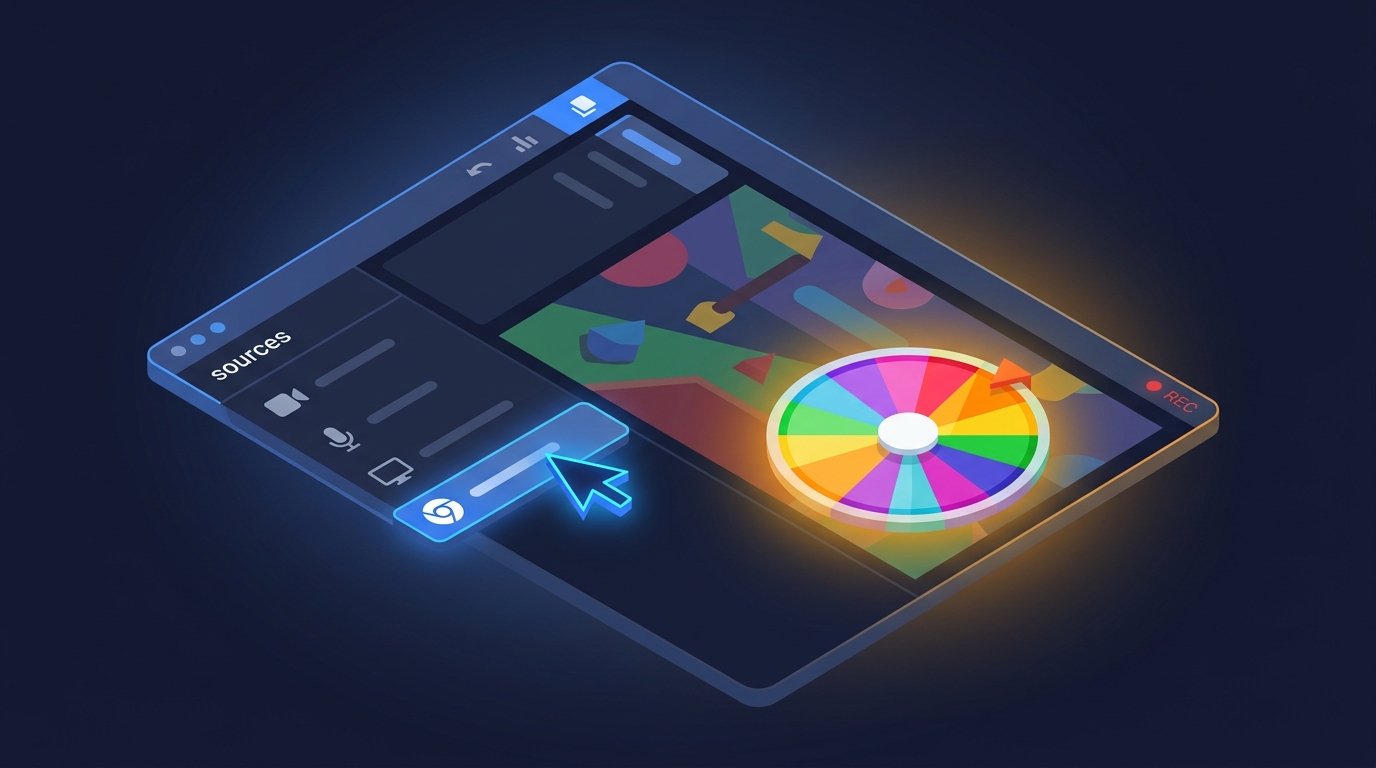
A wheel spinner on stream is one of the fastest ways to turn a static giveaway into appointment viewing. Chat stays glued to the screen as the wheel slows down, and the audible ticks build real tension. But getting it into your broadcast layout cleanly — with the right size, transparency, and audio — takes a few specific steps.
This guide covers OBS Studio, Streamlabs Desktop, and vMix. Same principles, slightly different UI in each.
The Three Integration Methods
There are three ways to get a wheel spinner on stream:
- Browser Source — cleanest option. Loads the wheel page as a transparent overlay directly inside your broadcast software.
- Window Capture — you open the wheel in Chrome or Edge, then capture that window in OBS. Simple, but you see the full browser UI.
- Screen Capture — captures your entire desktop. Useful if you're also showing a spreadsheet or chat alongside the wheel.
We recommend Browser Source for most cases. It's the cleanest and most professional-looking.
Method 1 — OBS Studio (Browser Source)
- Open OBS Studio and select your scene.
- Click the "+" in the Sources panel. Choose{" "} Browser from the list.
- Name the source — something like "Wheel Spinner" — and click OK.
-
Paste the URL:
https://selectawheel.com/pages/giveaway.html -
Set the dimensions. Width
1280, height720is a good starting point. Or use{" "}1920x1080for a full-screen layout. - Click OK. The wheel loads in the preview.
- Crop to the wheel area using Alt + Drag on the red handles in the preview.
Optional: enable audio
In the Browser Source properties, scroll down and check{" "} Control audio via OBS. Then in the Audio Mixer, right-click the browser source and choose{" "} Advanced Audio Properties. Set its monitoring to{" "} Monitor and Output if you want to hear the ticks yourself.
Method 2 — Streamlabs Desktop
Streamlabs Desktop uses the same browser source concept:
- Open Streamlabs Desktop and select a scene.
- Click the "+" in the Sources panel.
- Choose "Browser Source."
-
Paste the URL:
https://selectawheel.com/pages/giveaway.html - Set dimensions: 1280×720 or 1920×1080.
- Click "Add Source." The wheel loads into your scene.
Streamlabs has a slightly different audio panel — the browser source's audio is routed through the same global mixer.
Method 3 — vMix
For vMix users:
- Click "Add Input."
- Choose "Web Browser."
- Paste the URL into the Web Browser input.
- Set the resolution to match your canvas.
- Click OK. The wheel loads as an input.
- Use the Position/Size tab to overlay it on your main output.
Sizing and Positioning
The wheel spinner page loads at full width. To crop it to just the wheel:
- Press and hold Alt (Option on Mac) while dragging the red edge handles of the browser source in the preview.
- Scale down by dragging a corner while holding Alt.
- Position in a corner for a small overlay, or center it for the full-stream spin.
Recommended Layouts
Corner overlay (always visible)
- Browser source size: 600×600
- Position: bottom-right corner
- Scale: 0.5
- Result: small wheel always visible; you spin it live when needed
Full-screen spin (appears for the spin)
- Browser source size: 1920×1080
- Position: full canvas
- Result: large dramatic wheel for giveaways and reveal moments
Split layout (wheel + gameplay)
- Browser source size: 960×1080
- Position: right half of canvas
- Result: gameplay on left, wheel on right for interactive games
Audio Routing
The wheel emits tick sounds as it spins and a win chime when it stops. To hear these on your stream:
- In OBS: open the browser source properties → check "Control audio via OBS."
- Right-click the browser source in the Audio Mixer → choose "Advanced Audio Properties."
- Set Monitor to "Monitor and Output" if you want to hear the ticks yourself.
- Adjust the volume slider in the Audio Mixer so the ticks are audible but not overwhelming.
For most streamers, ticking sounds are exactly what makes the spin feel real. Don't mute them unless your community finds them annoying.
Interacting with the Wheel While Live
You need to type the entries into the wheel and click Spin. In OBS, this works two ways:
- Interact mode: click the "Interact" button above the preview. A window opens where you can click and type inside the browser source.
- Separate browser tab: open the wheel URL in Chrome, load your entries, then leave it open. When you spin in Chrome, OBS captures the same page (since browser sources load independently, you'll need to interact via OBS's Interact mode instead).
Common Issues and Fixes
The wheel appears small and cramped
The page is responsive. If the browser source is set to a narrow width, the layout switches to mobile view. Set the width to at least 1280 to keep desktop layout.
The wheel spins but no audio comes through
Check three things: (1) "Control audio via OBS" is enabled in the browser source properties, (2) the source is not muted in the Audio Mixer, and (3) Monitor is set to "Monitor and Output" in Advanced Audio Properties.
The wheel page shows ads or the sidebar
The wheel page includes a sidebar with entries and controls. Crop
the browser source to just the wheel area using Alt+Drag.
Alternatively, use a URL parameter like{" "}
?embed=1 if the tool supports it — check our
documentation for the current option.
The wheel lags the stream
Some streaming software struggles with high-DPI browser sources. Right-click the source → Properties → set "Custom CSS" to force lower resolution, or reduce the browser source size and scale it up in the preview.
I need multiple wheels on stream
Add separate browser sources for different wheel pages (one for the giveaway wheel, one for the challenge wheel). Each loads independently and can be toggled on/off during the stream.
Ready-Made Wheel Overlays
If designing an overlay from scratch feels like too much, start with our pre-configured pages:
- Giveaway Wheel — best for prize draws and subscriber raffles
- Party Wheel — best for challenge and dare wheels
- Decision Wheel — best for 50/50 picks and coin-flip moments
Author
SelectAWheel Team — we build and maintain the free SelectAWheel wheel spinner. Reach us at admin@selectawheel.com.
Add the Wheel to Your Stream
Open our free Giveaway Wheel and paste the URL into your browser source.
Launch Giveaway Wheel